
How Does UiPath Autopilot Simplify Workflow Automation?
UiPath Autopilot is an AI assistant that helps users build and modify automation workflows using natural-language instructions. It uses generative AI to interpret user prompts and generate workflow structures, expressions, and other automation components. Autopilot is integrated into UiPath Studio and Studio Web, with capabilities that vary depending on the product and workflow type.
What is Autopilot?
Autopilot is a feature that uses generative AI and natural-language instructions. It can generate workflow structures based on user input and create expressions from natural-language descriptions. It helps build automations with less manual configuration.
Why is it helpful?
- Text-to-Workflow: Describe your idea, and Autopilot generates a workflow structure based on your instructions
- Text-to-Expressions: Write in plain language, and Autopilot generates an expression that can be reviewed and modified
These capabilities reduce manual workflow configuration and help users translate business requirements into automation logic more quickly.
Use case:
A consumer electronics company offers extended warranties to customers who register their products using unique Product Registration Codes (PRCs) printed on the product packaging.
Challenge:
Customers often submit codes in the wrong format, mistype them, or provide incomplete codes. This leads to delays, additional communication, and manual validation work for internal teams.
Goal:
Automate the validation of registration codes to ensure:
- Only correctly formatted codes are processed
- Customers with invalid codes are immediately notified with clear instructions for correction
- Internal teams spend less time on repetitive validation and communication tasks
Practical Demo
This demo shows how Autopilot can generate a workflow that reads a Google Sheet, validates registration codes, and sends customized emails through Gmail.
Step1: Set Up the Required Connections
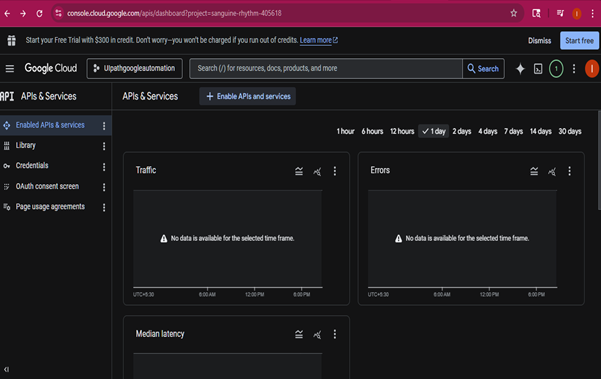
Set up the required Google Workspace and UiPath connections. If your configuration requires Google Cloud API access, create a project in Google Cloud Console. Go to APIs & Services > Library and enable the required APIs.
Step2: Prepare the Google Sheet
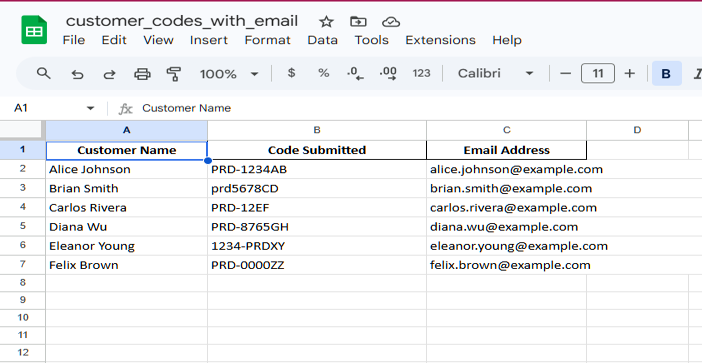
Create a Google Sheet with Customer Name, Code Submitted, and Email Address, and save it in Google Drive.
Step3: Create a Project with Autopilot
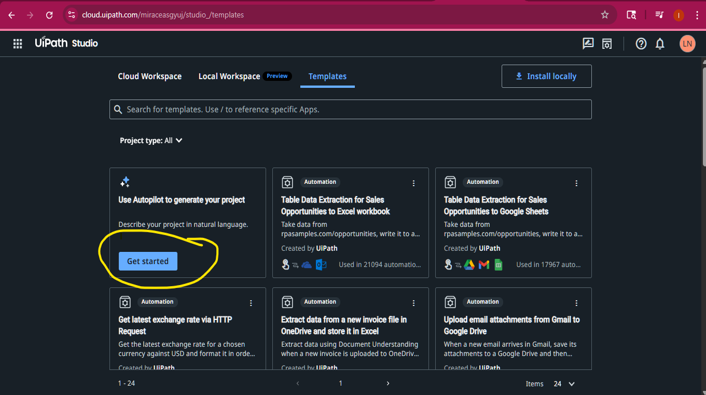
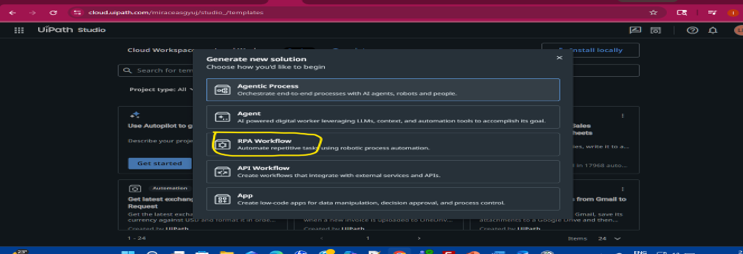
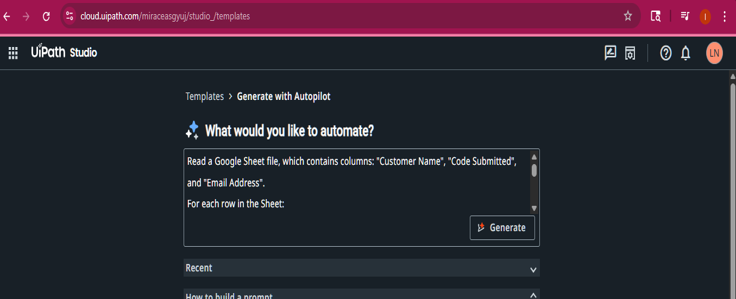
Go to UiPath Automation Cloud and open Studio Web. From the Templates page, select Generate with Autopilot to create a project using natural-language instructions.
Step 4: Enter the Automation Prompt
Enter a prompt that clearly describes what you want to automate.
Read a Google Sheet file containing the columns “Customer Name”, “Code Submitted”, and “Email Address”.
For each row in the Sheet:
Validate the value in “Code Submitted” using this rule:
The code must start with PRD-, followed by four digits, and end with two uppercase letters (e.g., PRD-1234AB). Codes that match the format are valid. Non-matching codes are invalid.
For Valid codes, send an email to “Email Address” with subject “Registration Successful” and body: “Hello [Customer Name], your product registration code ‘[Code Submitted]’ has been successfully verified. Thank you!”.
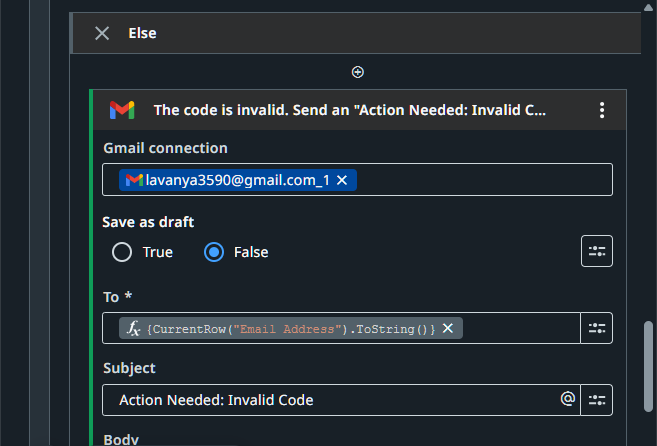
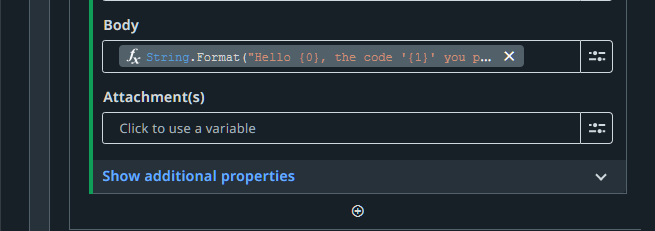
For Invalid codes, send an email with subject “Action Needed: Invalid Code” and body: “Hello [Customer Name], the code ‘[Code Submitted]’ you provided is invalid. Please double-check the format and try again. Valid format: PRD-1234AB.”
Step 5: Review the Generated Workflow
Autopilot generates a workflow preview based on the prompt. Review the generated activities, connections, expressions, and conditions, and refine the prompt if necessary before proceeding.
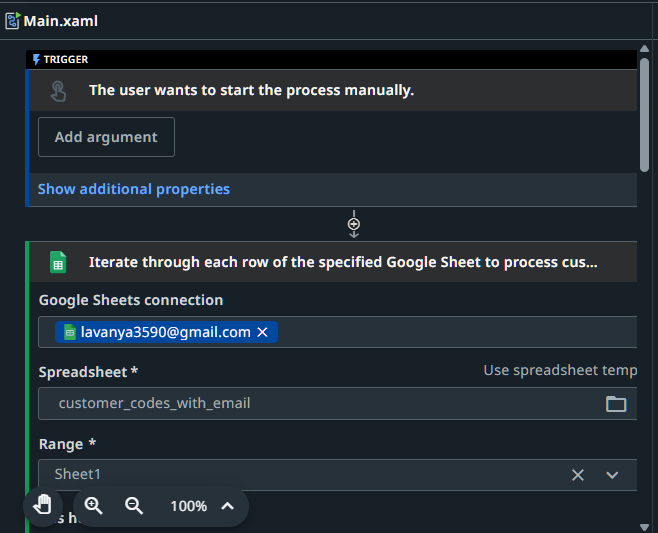
Connect to Google Sheets
Click the Google Sheets connection. Select your Google account and click Continue. Once the connection is successful, choose the Google Sheet from your Drive. Next, iterate through each row of the data and read the Google Sheet data into a DataTable.
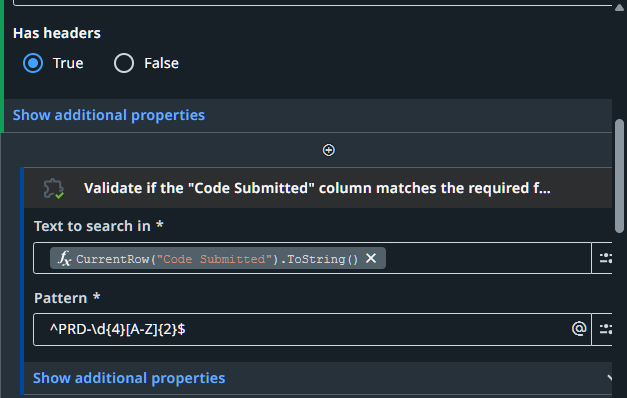
Validate the Customer Code
The workflow includes a Regex activity to validate the customer code pattern. Review the generated pattern carefully before running the workflow. The expected regex pattern is ^PRD-\d{4}[A-Z]{2}$, which matches codes such as PRD-1234AB.
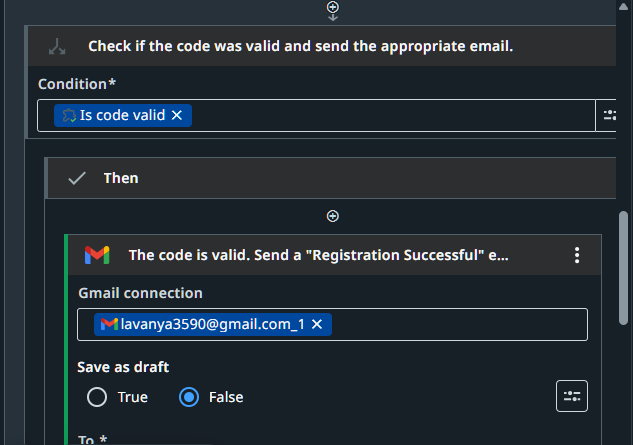
Configure Gmail
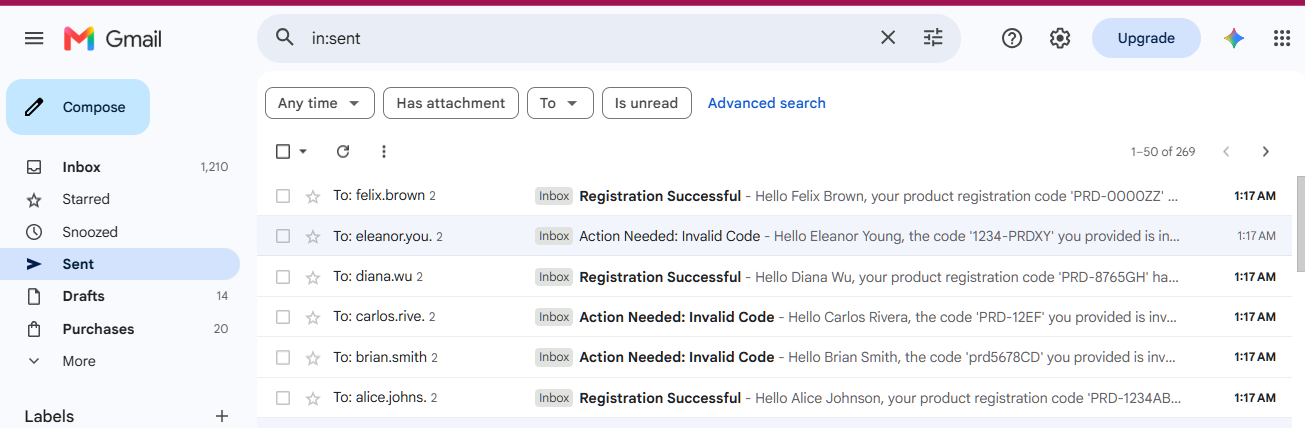
After validating the code pattern, click the Gmail connection. Select your Google account and click Continue. Once the connection is successful, review the email subject and body generated from the prompt. For valid codes, the workflow sends an email to the specified email address with the subject “Registration Successful”. For invalid codes, the workflow sends an email with the subject “Action Needed: Invalid Code”.
Final Output
The completed workflow reads customer records from Google Sheets, validates each registration code against the required format, and sends the appropriate email based on the validation result.
Conclusion
UiPath Autopilot acts as an AI assistant that helps users build automation workflows from natural-language instructions. Instead of writing code or configuring every activity manually, users can describe the desired outcome, review the generated workflow, and refine the automation as needed.